You want to do everything possible to keep errors from occurring. When possible, you want to make your code robust enough so that it can catch and fix as many errors as possible without resorting to "error handling". Although sometimes, the user is bound to get the best of your program by doing something you never considered remotely possible.
If an error occurs and your program cannot recover, you want to at least have your program exit in a graceful manner. Ideally in a way that doesn't require the system to be rebooted!
Here are some tips to follow to ensure a graceful exit even when an error occurs:
- Use custom error messages that explain what has happened, and if possible what a user can do to minimize problems. Don't rely on the standard VBA messages.
- Explain the consequences of the error that has occurred and a possible plan of action or even a contact person the user can get in touch with.
- Its even possible to write error messages to the Windows Event Log.
- Consider having the program contact YOU if an error occurs so you know how to fix the problem if contacted by the user.
- Find ways to handle the error so the host application (either Word, or Excel for example) does not fail and cause loss of data.
(paraphrased from Chapter 6 - VBA For Dummies by John Paul Mueller)
Custom Error Handling Example - Example6-2.xls
Common VB Error Codes
6 - Overflow (entered a value too large like 30000 where it
should be stored as a Byte)
9 - Subscript Out of Range
11 - Division By Zero
13 - Type Mismatch
The process of error handling (also known as trapping or catching errors) deals with catching runtime errors before they cause your program to stop and can be broken down into 4 steps:
- Setting the error trap
- Coding the error handler
- Resuming program execution
- Disabling the error trap
Here is an example that you could use as a template for your own programs:
Sub BasicErrorHandling()

    ' Turn on Error Handling - Setting the trap
    On Error GoTo ErrorHandler

    ' Code that might cause an error goes here

    ' Turn off Error Handling - Disable the trap
    On Error GoTo 0

CleanExit:
    ' Exit the application so error handlers aren't executed
    Exit Sub

ErrorHandler:
    ' An error occurred, so explain it nicely, with options to fix it.
    MsgBox "The " & Chr(34) & Err.Description & Chr(34) & " error occurred [" & Err.Number & "].", _
    vbCritical, "Error Handled"

    ' Clear the error so its values aren't used again by mistake
    Err.Clear
    Resume CleanExit
End Sub
The Err Object
When a runtime error (such as an index out of range error, Division By
Zero, Typemismatch etc.) occurs, an object of type ErrObject gets
created and is referred as Err. This Err
object can be examined to see what the problem was, and then your code
can take steps to either ask for the user to re-enter the value, or your
code can correct the problem with some sort of default value or possibly
even just ignore the error.
Here are some basic properties and methods of the Err
object. Check the online help for more info:
| Properties | Methods |
|---|---|
| Err.Name | Err.Clear |
| Err.Description | Err.Raise |
| Err.Source |
If you want to provide information about the errors you could write a function such as the one below to output the error info in a more readable format:
Public Function formatErrorMessage(e As ErrObject) As String
    ' Formats the info from the ErrObject and returns a nicely formatted String
    Dim msg As String
    msg = "Error Number: " & e.Number & vbCrLf
    msg = msg & "Description: " & e.Description & vbCrLf

    ' Return the string of a nicely formatted error
    formatErrorMessage = msg
End Function
Raising Custom Errors
It is possible to use the Err.Raise method to create your
own custom errors for more complex programs. Usage:

Sub CustomErrorHandlingExample()
    Dim result As VbMsgBoxResult

    ' Turn on Error Handling
    On Error GoTo ErrorHandler

    ' More code...
    result = MsgBox("As an example, I will throw an error if you click Abort.", _
    vbAbortRetryIgnore, "Try this")
    If result = vbAbort Then
    Err.Raise 65535, "CustomSource", "You clicked Abort!"
    End If

    ' Turn off Error Handling
    On Error GoTo 0

CleanExit:
    ' Exit the application so error handlers aren't executed
    Exit Sub

ErrorHandler:
    ' An error occured, so explain it nicely, with options to fix it.
    MsgBox "The " & Chr(34) & Err.Description & Chr(34) & " error occurred [" & Err.Number & "]", vbCritical, "Error Handled"
    MsgBox "The source of the error was: " & Err.Source
    ' Clear the error so its values aren't used again by mistake
    Err.Clear
    Resume CleanExit
End Sub
Other key points:
- The last line of code before the error handler must be
Exit Sub(orExit Functionif your code is inside a function), or else on normal execution of your program the error message will still display. - Always use
Err.Clearto clear the error code after you are done with it. This keeps if from being confused with partially created custom errors later in the program. - For raising custom errors, the numbers 0 - 512 are reserved by VBA.
Avoid codes 3000 - 4000 as they are also in used. Also note this piece
of info from numerous help documents:
- Number is the error's number. To assign a custom error number to
your custom error, add your custom error number to the
vbObjectErrorconstant (-2147221504) to make sure your custom error number doesn't conflict with any Office built-in error numbers. For example, to generate the error number -2147220504, assign vbObjectError + 1000 to theErr.Numberproperty. - That being said, if you are trying to raise a VBA error (like
15) then don't add
vbObjectErrorto it. - If you need to determine the original error number (ie, 1000)
use
Err.NumberAND NOTvbObjectError
- Number is the error's number. To assign a custom error number to
your custom error, add your custom error number to the
The IsError Function
The IsError function can be used in combination with an If
statement inside a spreadsheet cell to display meaningful error messages
instead of the cryptic ones that Excel displays, such as the one shown
below:
The IsError(value) function takes a value that could refer
to any resulting value: Value refers to any error value (#N/A,
#VALUE!, #REF!, #DIV/0!, #NUM!,
#NAME?, or #NULL!). It is a Boolean
function which returns True if an error occurred, or False
if it didn't.
If used in VBA code, the function still returns True or False
and should still take a value, such as the code shown below:
If IsError(myCell.Value) Then
' Do something since an error occurred
Else
' An error did not occur
End If
Using this basic code, you can create a number of different standard dialog boxes:
' This code allows users to select multiple Excel files and then opens them
Sub OpenFiles()
    Dim fd As Office.FileDialog
    Dim file As Variant

    Set fd = Application.FileDialog(msoFileDialogOpen)
    With fd
        If .Show Then
            For Each file In .SelectedItems
            ' If using a FilePicker or FolderPicker, you don't execute the files,
            ' you do other things.
            .Execute
            Next file
        End If
    End With
End Sub
The values for the msoFileDialogTypes are msoFileDialogOpen,
msoFileDialogSaveAs, msoFileDialogFolderPicker,
and msoFileDialogFilePicker.
Practice
The following code works fine with an age less than 256. If words, or a larger value is entered, it generates runtime errors. Copy and paste it into a code module:
Sub ch12task1()
    Dim age As Byte
    age = InputBox("How old are you?", "Age")
    MsgBox "Your age in 2021 will be " & age + (2021 - Year(Now)) & ".", _
      vbOKOnly + vbInformation, "Doomsday"
End Sub
Run the program before you make any changes to learn the error numbers and descriptions associated with these common runtime errors. Enter the following values and see the error description and error number that gets generated:
1000
twentyfive
Use Error Handling, not just If statements and modify the
code so it displays an appropriate error message and ends cleanly if
invalid data is entered.
Links
Error Handling - External Link
Date & Time functions in VBA - External Link
Instructions
-
Save the spreadsheet file as a Macro Enabled Workbook (
.xlsm) file before you write more code. Name your spreadsheet with your network login followed by_l08.xlsm. For example, if your network login wasbarn4520, then your lab file should be namedbarn4520_l08.xlsm. Save often. -
All tasks are to be completed on your own.
-
Show the Developer Tab in Excel. Click File / Options Customize Ribbon and check the option for Developer Tab.
-
Put all code into a Module. Use a different Module for each task and name them appropriately as Task1 or Task2 etc.
-
Copy and paste this header into your code modules and fill it out:
Option Explicit

' ==== CP212 Windows Application Programming ===============+
' Name: Your Name
' Student ID:
' Date:
' Program title:
' Description:
'===========================================================+
-
Make sure you test your tasks submitting your lab to the dropbox.
-
When finished upload your file to the Lab 8 Task Dropbox in MyLearingSpace.
Tasks
-
The file monthly_transactions.xlsm contains the monthly transactions of a bank customers. It shows the number of new customers and the number of transactions performed by these customers. An achievement is calculated by the division of number of transactions for new customrs by the number of new customers each month. Unfortunately, this results in a #DIV/0! error in a month where there are no customers.
The question explored here is how you can recognize and react to this cell error in VBA code. There is already a
NewCustTranssub in this file that goes through each cell in theTrans/Customer New Customerscolumn and displays the cell's value in a message box.Run the sub and watch how it goes.
Now rewrite the code so that if this error occurs, a message is displayed to the effect that no percentage can be reported because no free new customers were recorded and no nasty error messages are displayed. Do this by checking only the cells in column E. (Hint: Use VBA's
IsErrorfunction). -
Inside the same file, copy the code below into a new module named
Task2:Sub OpenAFile() ' Opens a file from the folder this workbook is saved in Dim strFileName As String strFileName = "sample.xlsx" ' Turn off the default Excel messages Application.DisplayAlerts = False Workbooks.Open Filename:=ThisWorkbook.Path & "\" & strFileName ' Turn on the alerts again Application.DisplayAlerts = True End SubTry running the code. Since you don't have the sample file in your folder, it displays a runtime error.
- Add a message asking the user to enter a full file location to be opened by this sub:
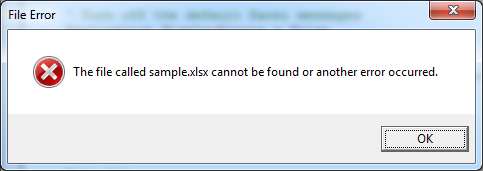
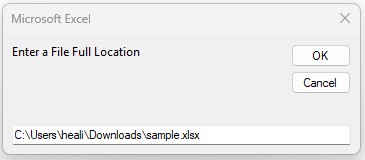 and the Write error handling into the subroutine to display the
following message when the file can't be found:
and the Write error handling into the subroutine to display the
following message when the file can't be found:
- Add a message asking the user to enter a full file location to be opened by this sub:
- Make sure to include the custom title and the vbCritical button style.
- Create a worksheet named
FileCheckand place a button that runs the subroutine.
Notes