This lab introduces the mechanics and practices of the CP367 labs. We assume that you have a basic grounding in using email and a web browser . If you need extra help for anything related to a lab, please talk to the Lab Instructor.
Administration
In order to work effectively in this course, you must have the following:
- a Laurier email address
- access to the CP367 web site (which you are looking at now)
- subscription to the course mailing list
- access to MyLearningSpace
- an account on the department's unix server
hopper
Most of these things are automatically made available to you - just make sure they are all working. If you have problems with any of them, please let your lab supervisor know as soon as possible.
Talking to
hopper
Most of your work in this course will be done using a unix command line environment, or console. Although this may seem primitive, command line environments are still in wide use, particularly 'under the hood' of unix and linux boxes where GUI interfaces are either not sufficient or non-existent for certain types of work.
You will be working on the department's unix server
hopper
, named after Rear
Admiral Grace Hopper, a pioneer in the computer science field.
hopper
is running Oracle Linux 7.
The PCs in labs N2085 and N2095 provide the SSH client software putty.
putty
is small, full-features, robust, and best of all, free. You are
welcome to use any SSH client you like, but we will demonstrate the
use of
putty
in this lab and throughout the course.
Note that for security reasons ICT allows access to putty only from on-campus.
Starting
putty
from the Windows desktop brings up the following dialog window:
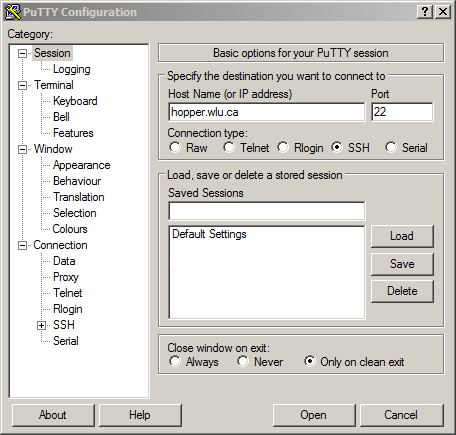
For the Host Name enter
hopper.wlu.ca
, and make sure the SSH connection type is selected.
hopper
rejects non-SSH connections. Then press the Open button.
putty
's default settings should work fine for your SSH connections, but
you are welcome to change the window size, font, virtual terminal
type, etc. You cannot save
putty
session settings to a lab PC, but you certainly may on your own
computer.
Your
hopper
unix Account
putty
opens a simple console window that gives you command line access to
your account on
hopper
. The course lab supervisor created all course accounts before the
first lab - you may have a hopper account from a previous course.
The account uses your Laurier login based upon your surname and
student ID number.
When logging inthe
putty
console window looks something like this:
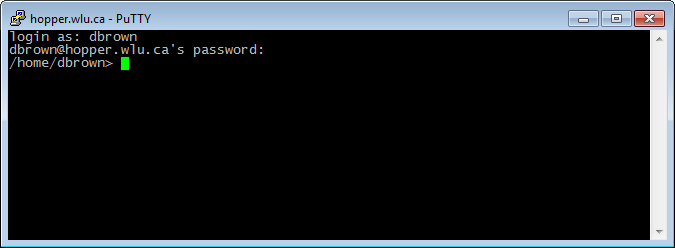
You are first asked for your login, then for your password. Your
password is not displayed as you type it. Press the enter key when
you have finished typing your password.
hopper
then gives you the system command-line prompt. (Note: when
logging into
hopper
you may not be asked for your password as it is picked up from the
machine you are running
putty
on. This is not a problem.)
You may be asked to accept an SSH key - answer 'Yes'.
The system command-line prompt (hereafter 'prompt') tells you where
in the
hopper
file system you are currently located. In the example above, the
user
dbrown
has an account in the
/home/dbrown
folder. As you move through the file system the prompt changes to
match your current location. For most intents and purposes you have
legal access to your folder in
/home
and any subfolders you may create only. You have read access to
numerous other folders on the system, mostly for access to software.
This will be discussed in greater detail in later labs.
To log out of your account and automatically close the SSH client window, type exit , followed by the Enter key.
The default hopper shell is
bash
. If you wish to change to another shell you are welcome to do so,
but all examples are done in
bash
. (If you have no idea what this means, then leave it alone.)
By default you have a
public_html
folder in your account that you may use to post web pages. Your URL
is
http://hopper.wlu.ca/~your_account/
. (The sample URL is http://hopper.wlu.ca/~dbrown/)The
public_html
folder contains a default
index.htm
file that you are free to edit. Just remember the 50MB quota on your
account!
putty
allows you to copy and paste from its terminal window. To copy, use
your mouse to highlight the text you wish to copy - it is
automatically copied to the PC's clipboard. To paste into the
terminal window right-click anywhere in the window with the mouse
cursor and the clipboard text will be pasted at the current location
of the text cursor (not the mouse cursor).
Editing
You will be editing, compiling, and executing C programs and shell
scripts on
hopper
. There are a number of editors available on
hopper
, but by far the most powerful is
emacs
.
To start
emacs
simply type
emacs
at the prompt:
File Edit Options Buffers Tools Help
Welcome to GNU Emacs

Get help           C-h  (Hold down CTRL and press h)
Undo changes       C-x u       Exit Emacs               C-x C-c
Get a tutorial     C-h t       Use Info to read docs    C-h i
Ordering manuals   C-h RET
Activate menubar   F10  or  ESC `  or   M-`
(`C-' means use the CTRL key.  `M-' means use the Meta (or Alt) key.
If you have no Meta key, you may instead type ESC followed by the character.)

If an Emacs session crashed recently, type M-x recover-session RET
to recover the files you were editing.

GNU Emacs 21.3.1 (i386-pc-solaris2.10, X toolkit, Xaw3d scroll bars)
 of 2008-08-10 on einstein
Copyright (C) 2001 Free Software Foundation, Inc.

GNU Emacs comes with ABSOLUTELY NO WARRANTY; type C-h C-w for full details.
Emacs is Free Software--Free as in Freedom--so you can redistribute copies
of Emacs and modify it; type C-h C-c to see the conditions.
Type C-h C-d for information on getting the latest version.
----:---F1  *scratch*         (Lisp Interaction)--L1--All-----------------------
For information about the GNU Project and its goals, type C-h C-p.
Before we can create a C program we need to create a directory to
put it in. To create a
CP367
directory in your account, type the following commands at the
prompt:
mkdir CP367
cd CP367
The first command creates a new directory (
mkdir
- Make Directory) in your account named
CP367
. The second command moves your 'focus' to that directory (
cd
- Change Directory). You should see that your prompt now shows
CP367
as part of it to indicate that you are in the
CP367
directory.
Now you can create program files in the
CP367
directory. To start
emacs
with a file (your normal approach), type
emacs filename
at the prompt, as in this example:
emacs ctest.c
which allows you to enter:
File Edit Options Buffers Tools C Help
/*
 * ctest.c
 *
 *  Created on: 2024-01-03
 *      Author: David Brown
 */
#include <stdio.h>

int main() {
    char letter;
    for (letter = 'A'; letter <= 'z'; letter++) {
        printf("%c\n", letter);
    }
    return 0;
}


----:---F1  ctest.c           (C Abbrev)--L1--All-------------------------------
Loading cc-mode...done
emacs
is designed to work with dozens of terminal types, and they all have
their own quirks and specific types of interface. We will concern
ourselves only with the keys and commends that work with
hopper
and
putty
in our labs. Should you connect to
hopper
from another type of terminal be aware that some of the key
associations mentioned here may not work with those types - you are
responsible for finding alternatives.
The three most important keys in emacs are:
-
The
CTRLkey, denoted asC-. Hold down the actual keyboard Ctrl key in combination with whatever other key is noted. Example: to exitemacs, press C-x C-c -
The
METAkey, denoted asM-. Press and release the actual keyboard Esc key followed by the next required key. Example: to move to the next word, press M-f -
The
MENUkey, to activate theemacsmenu bar. Press the F10 function key to bring up the menu, as in this example:Emacs Menu File Edit Options Buffers Tools Minibuf Help /* * ctest.c * * Created on: 2024-01-03 * Author: David Brown */ #include <stdio.h> int main() { ----:---F1 ctest.c (C Abbrev)--L1--Top------------------------------- Press PageUp Key to reach this buffer from the minibuffer. Alternatively, you can use Up/Down keys (or your History keys) to change the item in the minibuffer, and press RET when you are done, or press the marked letters to pick up your choice. Type C-g or ESC ESC ESC to cancel. In this buffer, type RET to select the completion near point. Possible completions are: f==>File e==>Edit o==>Options b==>Buffers t==>Tools c==>C h==>Help ----:%*-F1 *Completions* (Completion List)--L1--All----------------------- Menu bar (up/down to change, PgUp to menu): f==>File
Keys may be combined. Thus, M-C-p means press Esc followed by Ctrl-p .
The cursor control (arrow) keys work as you would expect, and the Backspace key deletes characters to its left. The Delete key does nothing (which can be a problem).
Tasks
We will briefly use
emacs
to create the following file. Enter this C code into the file
ctest.c
:
/*
 * ctest.c
 *
 *  Created on: 2024-01-03
 */
#include <stdio.h>

int main() {
    char letter;
    for (letter = 'A'; letter <= 'z'; letter++) {
        printf("%c\n", letter);
    }
    return 0;
}
Exit
emacs
, and at the prompt compile this file using the
gcc
compiler by entering the following command at the prompt:
gcc -g -o ctest ctest.c
If it compiles without error, run the file by typing the following command at the prompt:
./ctest